

Airlead Connect overview
Airlead Connect delivers leads between two Airlead workspaces. It keeps the sender’s delivery transaction connected to the recipient’s list or channel, so structured feedback can travel back.When to use Connect
Use Connect when both organizations work in Airlead and want:- workspace-to-workspace delivery
- agreed commercial terms
- an explicit field mapping
- feedback or Storno linked to the original transaction
How the connection works
- The recipient creates a Connect endpoint for a list or channel.
- The recipient shares the Connect ID and, when required, its secret securely.
- The sender connects a buyer to that endpoint.
- Both sides review terms and field mapping.
- A synthetic lead verifies the complete path.
- The partnership is activated for production.
Connect ID
A Connect ID identifies the receiving endpoint and begins withAC-.
It is created when you set up Connect on the recipient list or channel. Receiving a first production lead is a separate verification step and is not required to issue the ID.
Create the Connect ID
On the recipient side:- Open the list or channel.
- Go to Technik.
- Under Airlead Connect, choose Connect einrichten.
- Copy the Connect ID and share it with the Markets sender.
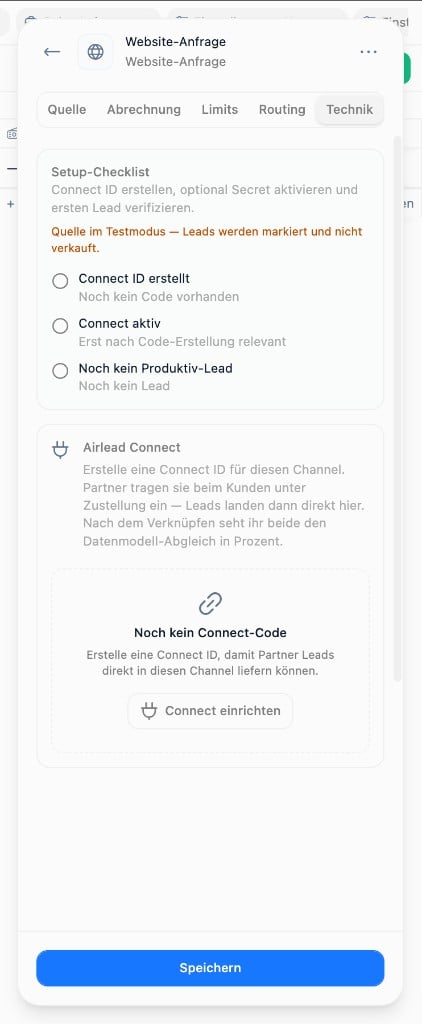
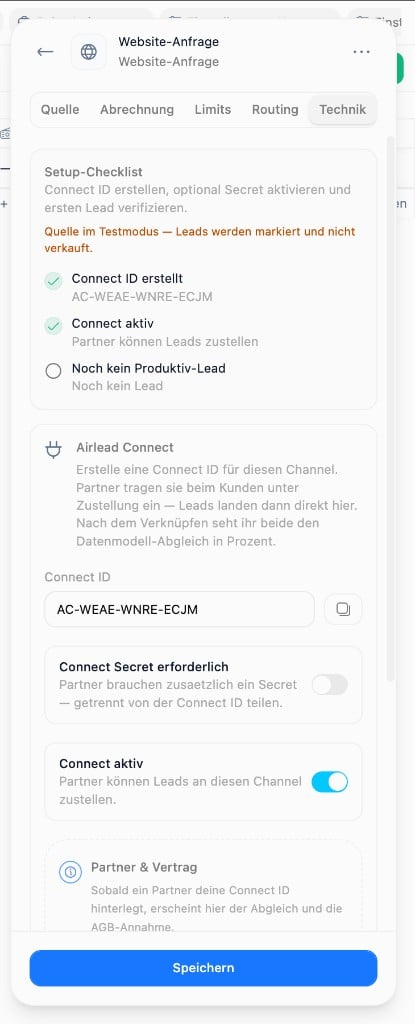
An endpoint can require a Connect secret. Share it separately from the ID and rotate it if it is exposed.
Partnership
A partnership binds:- the sender’s buyer and commercial context
- the recipient endpoint
- the agreed terms
- the sender-to-recipient field mapping
Before production
- Use synthetic contact details.
- Confirm the expected product and list or channel.
- Inspect every mapped field on the recipient side.
- Verify consent data and required values.
- Submit one feedback outcome and confirm that the sender sees it.
- Agree on Storno reasons and response times.