> ## Documentation Index
> Fetch the complete documentation index at: https://docs.airlead.de/llms.txt
> Use this file to discover all available pages before exploring further.
# Connect source via webhook
> Send leads directly into Airlead without Make or Zapier using the Technik setup flow.
# Connect source via webhook
Airlead can receive leads **directly** from a website, CRM, form tool, or partner system.
You do not need Make, Zapier, or another middleware tool when the sending system can POST JSON to a webhook URL.
## When to use this
Use the webhook source when you want to:
* connect a website form or landing page
* receive structured leads from a CRM or partner system
* avoid building and maintaining a separate automation stack
* map any partner JSON into Airlead fields yourself
Use CSV, email, or Connect instead when the partner cannot send HTTPS JSON.
* CSV / upload: [Import leads from CSV or upload links](/guides/lead-capture/csv-upload)
* Email: [Capture leads from email](/guides/lead-capture/email-capture)
* Connect: [Airlead Connect overview](/guides/connect/overview)
## What you set up
In Markets, open a channel source and go to **Technik**.
Airlead walks you through four steps:
1. **Verbinden** — copy the webhook URL and optional secret
2. **Sample** — receive a real JSON payload
3. **Zuordnen** — map fields, including automatic mapping
4. **Live** — publish the mapping and switch to production
## Before you begin
You need:
* a Markets channel
* an **API / webhook** source on that channel
* a product with the fields you want to capture
* a synthetic test lead with no real customer data
## 1. Verbinden
Open the source → **Technik** → **Verbinden**.
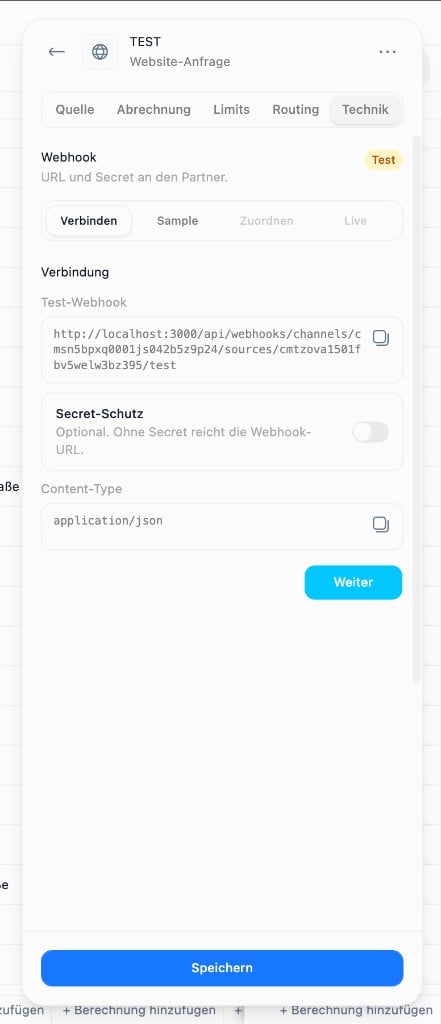 Copy:
* the **Test-Webhook** URL
* optional **Secret-Schutz**
* `Content-Type: application/json`
Give the URL (and secret, if enabled) to the website, CRM, or developer that will send leads.
Without a secret, the URL alone is enough to send data. Enable secret protection before production traffic.
## 2. Sample
Stay in **Test** mode and send any JSON to the test URL.
Copy:
* the **Test-Webhook** URL
* optional **Secret-Schutz**
* `Content-Type: application/json`
Give the URL (and secret, if enabled) to the website, CRM, or developer that will send leads.
Without a secret, the URL alone is enough to send data. Enable secret protection before production traffic.
## 2. Sample
Stay in **Test** mode and send any JSON to the test URL.
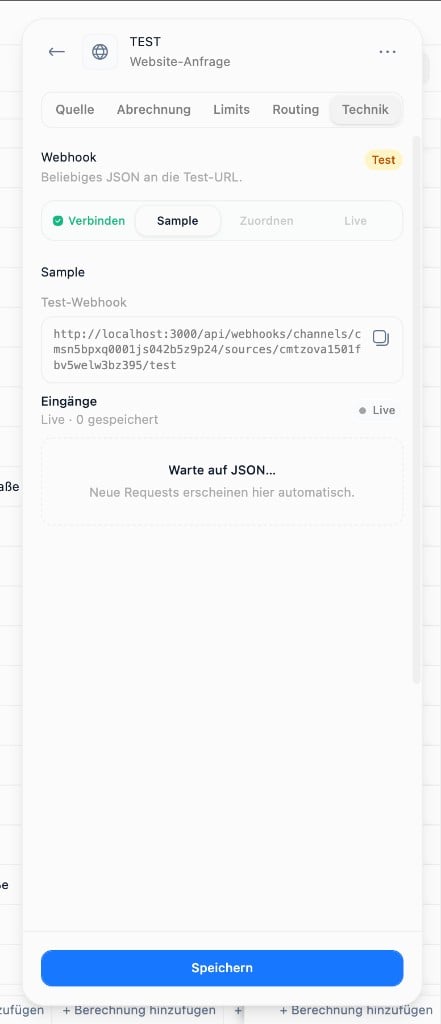 Incoming requests appear under **Eingänge**. Airlead stores samples so you can build the mapping from real payload structure instead of guessing field names.
Send a synthetic lead that includes:
* first and last name
* email or phone
* product qualification answers
* a stable external ID, if available
## 3. Zuordnen
Open **Zuordnen** and map the sample into Airlead person, consent, capture, and interest fields.
Incoming requests appear under **Eingänge**. Airlead stores samples so you can build the mapping from real payload structure instead of guessing field names.
Send a synthetic lead that includes:
* first and last name
* email or phone
* product qualification answers
* a stable external ID, if available
## 3. Zuordnen
Open **Zuordnen** and map the sample into Airlead person, consent, capture, and interest fields.
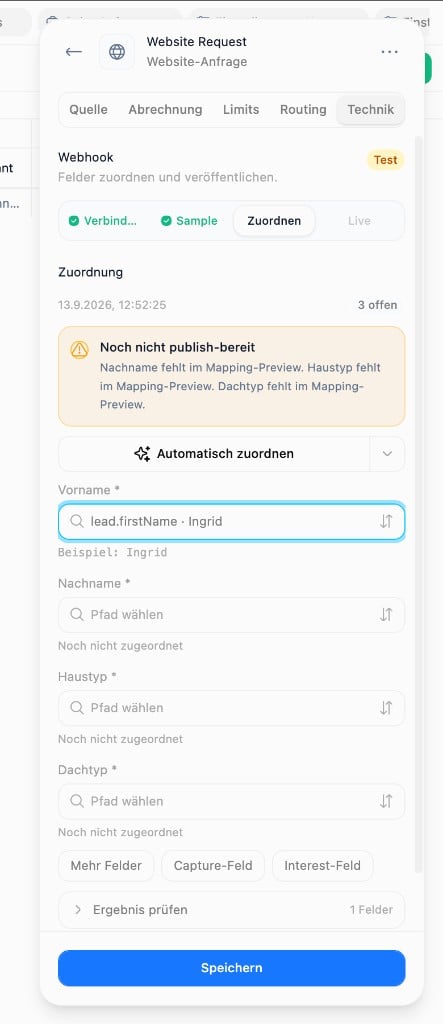 Use **Automatisch zuordnen** to draft the mapping, then review every required field.
Airlead shows when the mapping is not publish-ready yet. Complete missing required fields such as last name or product qualification answers before publishing.
When the mapping is complete:
Use **Automatisch zuordnen** to draft the mapping, then review every required field.
Airlead shows when the mapping is not publish-ready yet. Complete missing required fields such as last name or product qualification answers before publishing.
When the mapping is complete:
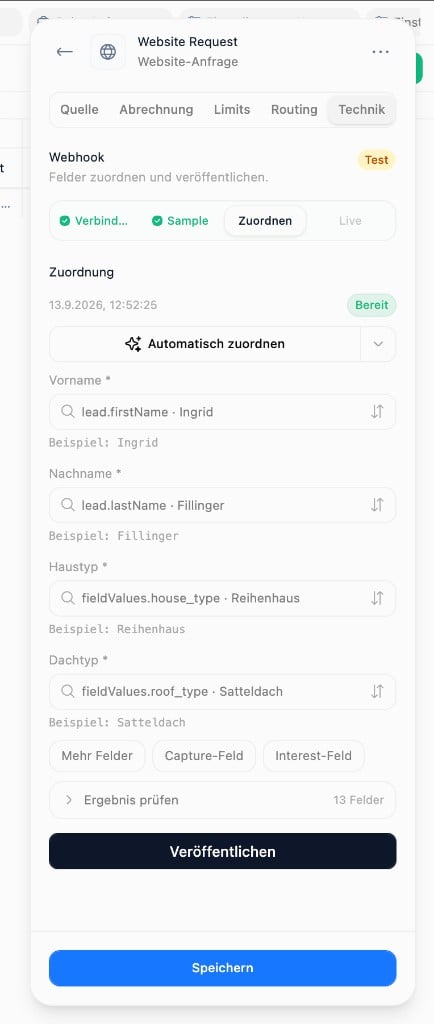 Check:
* person identity fields
* consent fields, if required
* product fields used for buyer criteria
* capture fields such as campaign or partner
* the mapped preview under **Ergebnis prüfen**
Then click **Veröffentlichen**.
## 4. Live
After publishing, the source shows an active mapping and the live webhook URL.
Check:
* person identity fields
* consent fields, if required
* product fields used for buyer criteria
* capture fields such as campaign or partner
* the mapped preview under **Ergebnis prüfen**
Then click **Veröffentlichen**.
## 4. Live
After publishing, the source shows an active mapping and the live webhook URL.
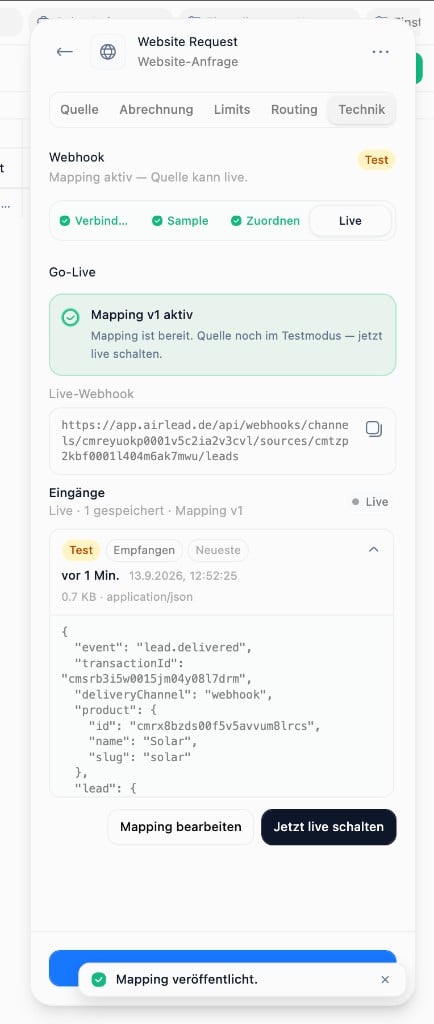 Switch the source from **Test** to **Live** only after:
1. a synthetic lead maps correctly
2. the person and interest appear as expected
3. duplicates and external IDs behave correctly
4. you do not want test traffic in production delivery
The live URL looks like:
```http theme={null}
POST /api/webhooks/channels/{channelId}/sources/{sourceId}/leads
```
## Why this replaces Make or Zapier for many setups
| Without Airlead webhook mapping | With Airlead webhook mapping |
| -------------------------------------------- | -------------------------------------------------- |
| Partner JSON must be rewritten elsewhere | Partner JSON is mapped inside Airlead |
| Middleware owns retries and field transforms | Airlead owns ingest, samples, and mapping versions |
| Another tool must stay configured | Website or CRM posts directly to Airlead |
Make or Zapier can still help when you need multi-system orchestration. They are not required for a direct website or CRM connection.
## After leads arrive
Ingest creates the person and interest. Delivery is separate.
Next:
1. Confirm the interest is in the intended channel
2. Check routing readiness and buyer eligibility
3. Deliver manually once
4. Enable Delivery 1.0 only after the path works
## Common questions
### Can a non-developer set this up?
Yes, if the partner can send JSON to the provided URL. The mapping itself is done in Airlead under **Technik**.
### What if the partner JSON changes later?
Open **Mapping bearbeiten**, capture a new sample if needed, update the paths, and publish again. Re-test with synthetic data before trusting production traffic.
### Does publishing immediately start delivery?
No. Publishing activates ingest mapping. Buyer delivery still depends on channel, eligibility, and Delivery 1.0 settings.
### Where is the technical contract?
See [Lead ingest](/developers/lead-ingest) and [Channel source ingest](/api-reference/ingest/channel-source-leads).
Next: [Understand and choose sources](/guides/channels-delivery/sources) · [Prevent duplicate leads](/guides/lead-capture/deduplication) · [Troubleshoot a delivery](/guides/troubleshooting/delivery)
Switch the source from **Test** to **Live** only after:
1. a synthetic lead maps correctly
2. the person and interest appear as expected
3. duplicates and external IDs behave correctly
4. you do not want test traffic in production delivery
The live URL looks like:
```http theme={null}
POST /api/webhooks/channels/{channelId}/sources/{sourceId}/leads
```
## Why this replaces Make or Zapier for many setups
| Without Airlead webhook mapping | With Airlead webhook mapping |
| -------------------------------------------- | -------------------------------------------------- |
| Partner JSON must be rewritten elsewhere | Partner JSON is mapped inside Airlead |
| Middleware owns retries and field transforms | Airlead owns ingest, samples, and mapping versions |
| Another tool must stay configured | Website or CRM posts directly to Airlead |
Make or Zapier can still help when you need multi-system orchestration. They are not required for a direct website or CRM connection.
## After leads arrive
Ingest creates the person and interest. Delivery is separate.
Next:
1. Confirm the interest is in the intended channel
2. Check routing readiness and buyer eligibility
3. Deliver manually once
4. Enable Delivery 1.0 only after the path works
## Common questions
### Can a non-developer set this up?
Yes, if the partner can send JSON to the provided URL. The mapping itself is done in Airlead under **Technik**.
### What if the partner JSON changes later?
Open **Mapping bearbeiten**, capture a new sample if needed, update the paths, and publish again. Re-test with synthetic data before trusting production traffic.
### Does publishing immediately start delivery?
No. Publishing activates ingest mapping. Buyer delivery still depends on channel, eligibility, and Delivery 1.0 settings.
### Where is the technical contract?
See [Lead ingest](/developers/lead-ingest) and [Channel source ingest](/api-reference/ingest/channel-source-leads).
Next: [Understand and choose sources](/guides/channels-delivery/sources) · [Prevent duplicate leads](/guides/lead-capture/deduplication) · [Troubleshoot a delivery](/guides/troubleshooting/delivery)